
Adobe Illustrator has been the industry standard for creating vector graphics since 1987. But here’s the thing: just because something’s popular doesn’t mean it’s right for you.
With a monthly subscription starting at $22.99 and a learning curve that can feel like climbing Mount Everest, you need to know if Illustrator actually delivers on its promises.
We’ve put Illustrator through its paces, testing everything from basic logo creation to complex illustrations.
In this Adobe Illustrator review, I’ll show you what it does well, where it struggles, and whether cheaper alternatives might work better for your specific needs.
Disclaimer: If you buy any products through links on this site, I may earn a commission. But it doesn't make any difference to your cost, and it helps me keep this blog running. So you could always read my articles for free.
What is Adobe Illustrator?
Adobe Illustrator is a vector graphics editor that creates images using mathematical formulas instead of pixels.
Here’s why that matters: when you draw something in Illustrator, you can scale it from a business card to a billboard without losing quality. The lines stay crisp, the colors remain sharp, and nothing gets blurry.

Think of it this way. Regular photo editing software like Photoshop uses tiny colored squares (pixels) to build images. That’s perfect for photographs.
But Illustrator works differently – it uses points, lines, and curves defined by mathematical equations.
So when you draw a circle, Illustrator remembers it as a mathematical formula, not as thousands of individual pixels.
The result? Your designs stay perfectly sharp at any size. That logo you created for a website? You can blow it up for a trade show banner without redrawing anything.
Illustrator launched back in 1987 and has become the go-to tool for creating logos, icons, typography, and illustrations.
Professional designers use it for everything from app interfaces to product packaging. But here’s something I would like to clarify in this review of Adobe Illustrator. It’s not just for pros anymore.
Small business owners create their own marketing materials with it. Artists sketch digital illustrations. Even hobbyists design custom t-shirts and stickers.
The software runs on both Windows and Mac, syncs your work to Creative Cloud, and plays nicely with other Adobe apps like Photoshop and InDesign.
How Adobe Illustrator works
Now that you know what Illustrator is, let’s break down how it actually works. Understanding the basics will help you decide if it fits your workflow.
First of all, Illustrator uses tools that might feel familiar if you’ve done any drawing before. You’ve got your Pen tool for creating custom shapes, a Selection tool for moving things around, and shape tools for quick rectangles, circles, and stars.
But here’s where it gets interesting – everything you create becomes an object you can edit endlessly.
Let me explain this in more detail in this Adobe Illustrator review. When you draw a line, Illustrator creates anchor points at each end. You can grab these points, move them, add more points, or adjust the curves between them.
The workspace itself is pretty straightforward. You’ve got your main canvas (called an artboard) in the center, tools on the left, and panels on the right for colors, layers, and properties.
And you know what? You can customize this layout however you want.
Illustrator works with layers, just like stacking transparent sheets. You put your background on one layer, text on another, and graphics on a third. This way, you can edit each element without messing up the rest.
The best part? Your work saves as an AI file that keeps everything editable. But you can also export to formats everyone uses – PDF, PNG, JPG, or SVG for websites.
Adobe Illustrator key features
Illustrator packs hundreds of features, but you don’t need to master them all. In this review of Adobe Illustrator, I’ll focus on the key features that actually matter for your daily design work.
Drawing and shape tools
First up, the Pen tool – Illustrator’s signature feature. Yes, it has a learning curve, but here’s the thing: once you get it, you can use it to literally draw anything. You click to create straight lines or click and drag to create curves.
And you know what? You can always go back and adjust those curves until they’re perfect.
Besides that, you’ve got basic shape tools that work exactly as you’d expect. Draw rectangles, circles, polygons, and stars with a simple click and drag.
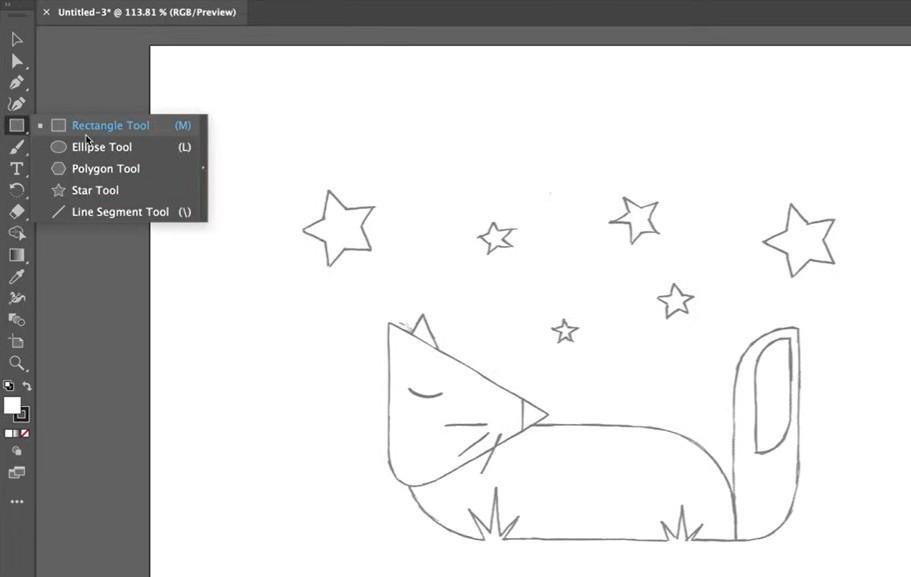
But wait – these aren’t just static shapes. You can round corners, adjust the number of star points, or turn a square into a complex geometric pattern. The Shape Builder tool takes this further by letting you combine and subtract shapes like you’re working with paper cutouts.
Typography features
One of the key features I would like to highlight in this Adobe Illustrator review is typography, because it goes way beyond just typing text. You can wrap text around any shape, flow it between multiple containers, or turn the letters themselves into editable shapes.
For example, you might type your company name, then stretch, skew, or warp individual letters for a custom logo.
The Touch Type tool lets you grab individual characters and resize, rotate, or reposition them without affecting the rest of your text.
Similarly, you can put text on any path – curved, zigzag, or even circular. The result? Typography that looks professionally designed, not just typed out.
Color and gradient tools
In terms of reviewing Adobe Illustrator, this is where it really shines. The color tools give you complete control over every aspect of your palette.
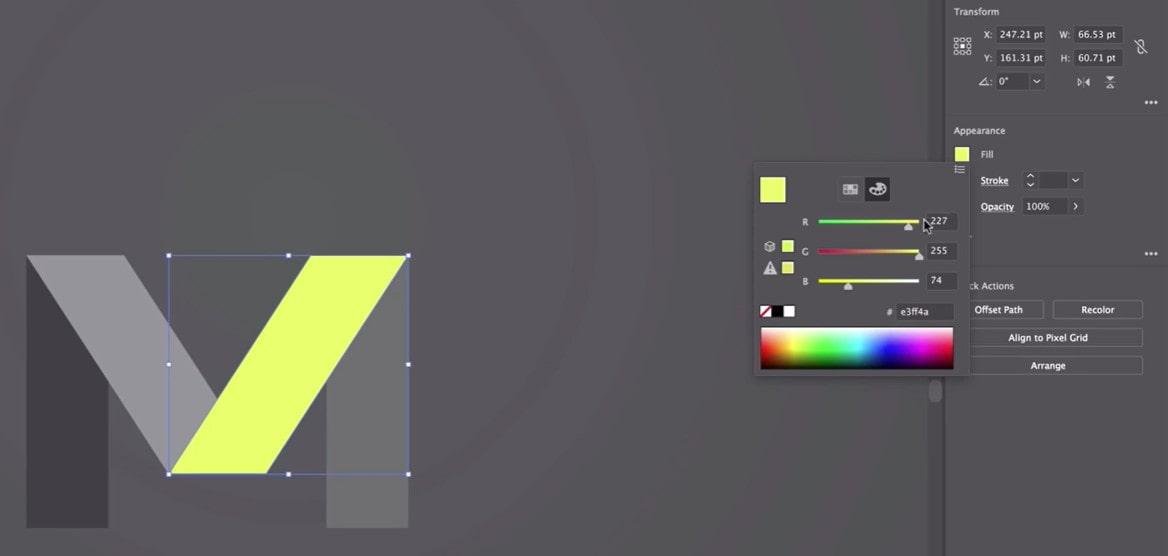
You can save custom color swatches, create color groups that work together, or use the Color Guide to find complementary colors automatically.
Gradients aren’t just simple fades anymore. You can create freeform gradients that blend colors in any direction, add multiple color stops, or apply gradients to individual strokes.
And get this – the Recolor Artwork feature lets you completely change your design’s color scheme with a few clicks. So if your client suddenly wants everything in blue instead of red, you’re covered.
Advanced path editing
The Pathfinder panel might look boring, but it’s incredibly powerful. You use it to merge shapes, cut holes, create intersections, or divide objects into pieces.
Let’s say you need to create a logo where text cuts through a circle – Pathfinder does that in seconds.
The Width tool is another standout feature I would like to highlight in this Adobe Illustrator review. You can vary the thickness of any line just by dragging, creating elegant calligraphy effects or dynamic illustrations.
Plus, the Smooth tool cleans up shaky hand-drawn lines, while the Simplify command reduces unnecessary anchor points.
Pattern and symbol creation
Creating repeating patterns used to take forever. Now? You design one tile, and Illustrator automatically generates seamless patterns. You can adjust spacing, add overlaps, or create complex geometric designs.
These patterns work as fills for any shape, and you can edit the original tile anytime to update the entire pattern.
Symbols work similarly but for individual graphics. Create a symbol once – maybe a tree for a landscape illustration – then use it fifty times.
When you edit the original symbol, all fifty trees update automatically. It’s perfect for illustrations with repeating elements.
Effects and appearance panel
No review of Adobe Illustrator is complete without discussing the Effects and Appearance panel. You can stack multiple fills, strokes, and effects on a single object. For instance, you might add three different colored strokes to create a vintage badge look, or combine drop shadows with outer glows for depth.
When you use Live Effects, they stay editable forever. Apply a warp, and you can adjust or remove it months later.
The 3D effects let you rotate flat artwork in space, add lighting, and even map artwork onto 3D surfaces. Unfortunately, these can slow down your computer if you go overboard.
Automation features
Let’s face it – some design tasks are repetitive. That’s where Actions come in. You record a series of steps once, then replay them on other files. Need to export fifty logos in different formats? Record an action and let Illustrator handle it.
But that’s not the only automation feature I’ll cover in this Adobe Illustrator review. The Image Trace feature can be used to convert raster images (like photos or scans) into editable vector artwork. It’s not perfect, but it works surprisingly well for simple graphics and hand-drawn sketches.
Integration with Creative Cloud
Illustrator doesn’t work in isolation. Your files sync through Creative Cloud, so you can start on your desktop and finish on your laptop. Libraries let you share colors, graphics, and character styles across all Adobe apps.
You can also place Photoshop files directly into Illustrator and maintain the layer structure. Similarly, your Illustrator graphics stay editable when you place them in InDesign or After Effects.
AI-powered features
Adobe’s been adding AI features recently, though they’re hit or miss. The Generative Recolor feature suggests new color variations for your artwork.
Text to Vector (still in beta) attempts to create graphics from text descriptions. These tools can spark ideas, but they won’t replace your design skills anytime soon.
The bottom line is this: Illustrator’s features range from essential to highly specialized. You’ll probably use about 20% of them regularly, but having the other 80% available means you’re ready for almost any design challenge that comes your way.
Adobe Illustrator review: pros and cons
Illustrator remains the best tool for serious vector work, but “best” doesn’t always mean “right for you.” In this section of my Adobe Illustrator review, I am going to focus on its pros and cons.
Pros of Adobe Illustrator
Industry standard compatibility
When you work with other designers or agencies, they’re probably using Illustrator too. This means you can share files without conversion headaches or missing fonts. For example, if you’re freelancing for a marketing agency, they can open and edit your AI files directly.
Infinite scalability without quality loss
Your designs stay sharp whether they’re printed on a business card or blown up for a highway billboard. This flexibility saves you from recreating artwork for different sizes.
Comprehensive toolset
An Adobe Illustrator review is never complete without discussing its comprehensive toolset. From basic shapes to complex mesh gradients, Illustrator has tools for virtually any vector project. You won’t need to switch between multiple apps to complete most design jobs.
Strong typography controls
You can manipulate text in ways other programs can’t match – warping, outlining, or placing it on any path imaginable. This makes it ideal for logo design and branding work.
Regular updates and improvements. Adobe consistently adds new features based on user feedback. Recent additions like cloud document saving and AI-powered tools show they’re actively developing the software.
Cons of Adobe Illustrator
Steep learning curve
The Pen tool alone can take weeks to master, and the interface overwhelms beginners with hundreds of panels and options. You’ll need significant time investment before feeling comfortable.
Expensive subscription model
At $22.99 monthly (or $263.88 annually), it’s a substantial ongoing cost. There’s no option to buy it outright anymore, so you’re locked into perpetual payments.
Resource-heavy performance
Another con I would like to mention in my Adobe Illustrator review is that it demands serious computing power, especially with complex illustrations. Older computers struggle, and even newer machines can lag with detailed artwork.
Limited raster editing
While you can place photos in Illustrator, you can’t edit them beyond basic adjustments. You’ll need Photoshop for any serious photo manipulation, adding to your software costs.
Adobe Illustrator pricing
Let’s talk money. Understanding Illustrator’s pricing structure helps you decide if it fits your budget and whether you’re getting good value for your investment.
Adobe offers Illustrator through several subscription plans. The single-app plan costs $22.99 monthly with an annual commitment, or $34.49 if you go month-to-month. Here’s the thing though – most people end up needing more than just Illustrator.
That’s where the Creative Cloud All Apps plan comes in at $34.99 monthly. You get Illustrator plus Photoshop, InDesign, Premiere Pro, and over 20 other apps.
For example, if you need both Illustrator and Photoshop (which most designers do), getting them separately would cost $45.98 monthly. So the full suite suddenly looks more reasonable.
Students and teachers catch a break with 60% off the All Apps plan, paying just $19.99 monthly for the first year. Besides that, businesses pay $89.99 per license monthly, but they get admin controls and advanced support.
Adobe occasionally runs promotions, especially around Black Friday. New users sometimes get the first month free or discounted rates for the initial few months.
To review Adobe Illustrator from a pricing perspective, it feels steep compared to one-time purchase alternatives like Affinity Designer ($69.99 total) or free options like Inkscape. However, you’re paying for more than just software. You get constant updates, cloud storage, Adobe Fonts, and integration with industry-standard tools.
For professionals billing even one client monthly, Illustrator pays for itself. But for hobbyists or occasional users, the subscription model is hard to justify. Consider your actual usage carefully before committing.
Final thoughts on Adobe Illustrator
Illustrator is unmatched for professional vector work, but it’s overkill for casual users.
If you just need to create basic social media graphics or simple diagrams, Illustrator feels like bringing a sledgehammer to hang a picture frame. Simpler tools might serve you better.
If you’re designing logos professionally, working with print shops, or creating complex illustrations, the investment pays off. The learning curve flattens out after a few months, and the creative possibilities become worth the subscription cost.
If you only need occasional graphics for social media or basic marketing materials, consider alternatives first. Tools like Canva, Affinity Designer, or even free options like Inkscape might meet your needs without the financial commitment and learning investment.
Did I miss anything in this Adobe Illustrator review? Did you try Adobe Illustrator? Do you have any questions or comments? Share your thoughts below in the comments section.